Live captions can give a person with aphasia a second way to follow spoken language, but they are not automatically easier than listening. Real-time transcription can be useful when speech is clear, the conversation is calm and the person still reads words more easily than they process fast speech. It can become distracting when captions contain errors, move too quickly, split sentences in unexpected places or force the person to divide attention between a screen and the speaker.
The most useful way to think about live captions is not as a replacement for conversation, but as an optional support. For some people, seeing one or two key words on screen can confirm what they heard. For others, a moving wall of text adds another language task at exactly the moment communication is already demanding.
What are live captions?
Live captions are automatically generated words that appear on a phone, tablet or computer while someone is speaking. Depending on the device and feature, they may transcribe audio from a call, a video, an app or a nearby in-person conversation.
On supported iPhones, Apple’s Live Captions feature can transcribe spoken audio in apps and can also use the microphone for an in-person conversation. Apple notes that availability depends on language and region and that accuracy can vary. The same general limitation applies to other automatic captioning systems: the text is generated by software, so it can be wrong.
For a person with aphasia, that matters. Aphasia can affect speaking, understanding, reading and writing in different combinations. A captioning feature can therefore help one person and frustrate another. Someone who understands written words relatively well may find captions reassuring. Someone whose reading is strongly affected may get little benefit from them.
When live captions may help a person with aphasia
Captions are most useful when they reduce uncertainty rather than create more work. Common situations include:
- Confirming a key word. A person hears most of a sentence but misses the name, time, place or number. Seeing the word on screen can fill the gap.
- Following a quiet one-to-one conversation. With one speaker and little background noise, transcription is usually easier to interpret than in a fast group conversation.
- Slowing down a phone call. Calls remove facial expression, gesture and lip movement. Captions can add one visual channel back into the conversation.
- Checking what was said after a difficult moment. If the system keeps a short transcript, rereading one line may be easier than asking for the whole sentence again.
- Supporting communication in noisy places. Restaurants, stations and waiting rooms can make speech harder to follow, although background noise can also reduce caption accuracy.
The principle is similar to using written keywords, pictures or gestures: communication does not have to depend on one channel. The article on aphasia-friendly video calls and visual supports explains how adding visual context can make turn-taking easier without taking over the conversation.
When live captions can make communication harder
Real-time text can also create a second stream of language that competes for attention. A person may try to listen, watch the speaker, read the captions and decide what to say next at the same time. That can be exhausting.
Captions may be less helpful when:
- the text moves faster than the person can comfortably read;
- several people speak at once;
- names, addresses or medical terms are transcribed incorrectly;
- the phone is held too far away to capture clear speech;
- the person becomes focused on correcting every caption error;
- reading is more difficult than understanding familiar spoken language;
- the screen pulls attention away from facial expression and gesture;
- fatigue makes switching between listening and reading difficult.
Aphasia can also vary during the day. A feature that works well in the morning may feel overwhelming after a long appointment or a busy social event. The guide to aphasia, fatigue and pacing explains why communication load can change even when the person’s underlying abilities have not suddenly disappeared.
A simpler live-caption setup for everyday conversations
More text is not always better. The most useful setup is usually the one that makes the captions easy to glance at without turning the entire conversation into a reading exercise.
- Increase the text size. Small captions create unnecessary visual effort.
- Use strong contrast. Clear text on a simple background is easier to scan than decorative styling.
- Put the screen near the speaker’s face. This reduces the distance the eyes must travel between the person and the captions.
- Keep the conversation one-to-one when possible. Automatic transcription struggles when voices overlap, and so do many human listeners.
- Ask for shorter sentences. Captions are easier to verify when each idea is brief.
- Pause after important information. Dates, prices, addresses and instructions deserve extra time.
- Use captions for confirmation, not interrogation. The goal is understanding, not proving that the software captured every word.
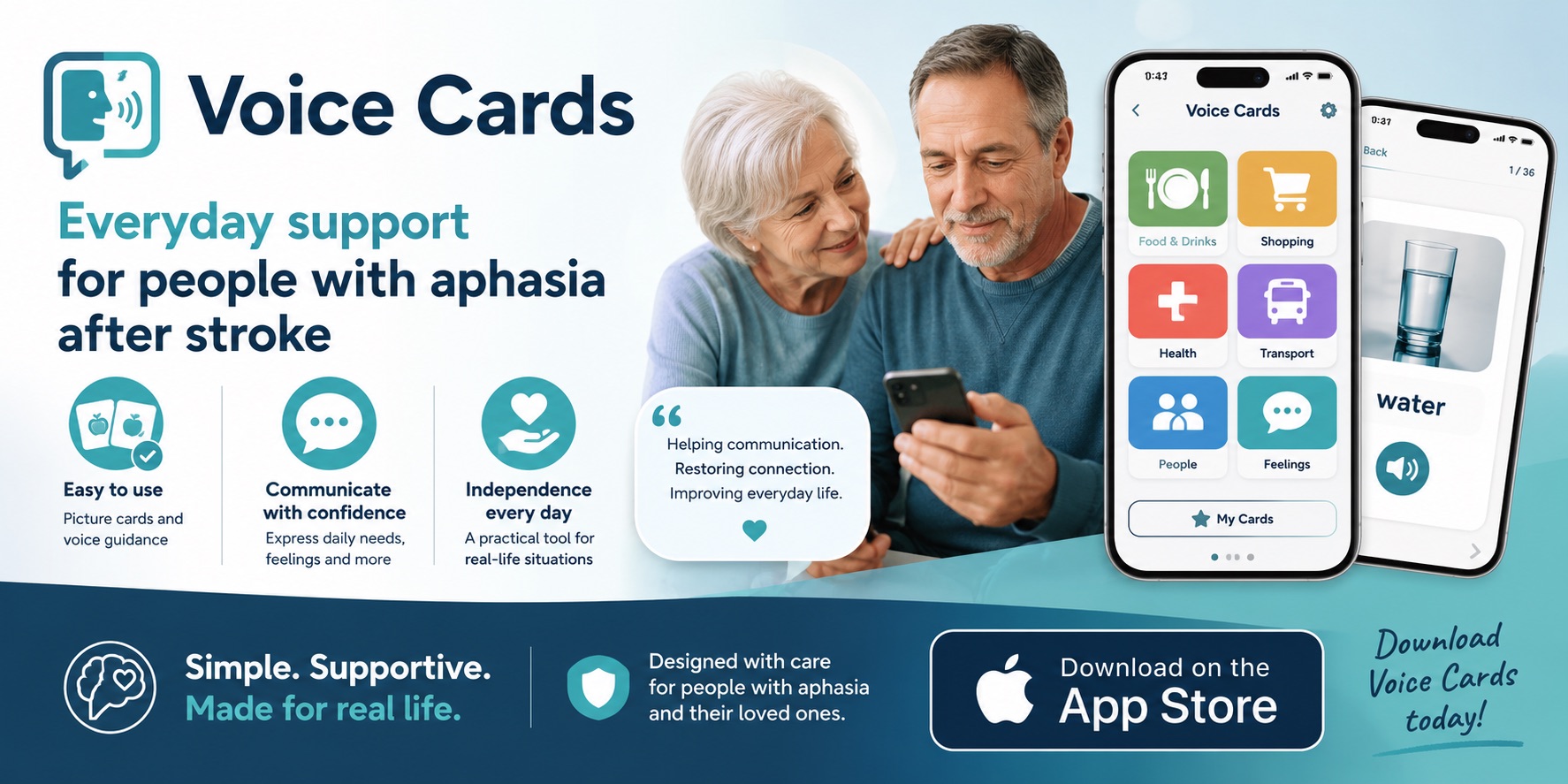
If a person already uses communication cards, photos or short written choices, captions can sit alongside those tools rather than replace them. The most effective communication system is often a mixture of speech, written keywords, gesture and context.
Live captions on phone and video calls
Phone calls can be particularly difficult with aphasia because there is no shared physical context. A missed word cannot always be repaired by pointing, showing an object or reading someone’s facial expression.
Captions can help, but the conversation still benefits from structure. At the beginning of a call, it may help to say or show a short message such as: “I have aphasia. Please speak slowly, one idea at a time, and give me time to answer.”
For planned calls, keep important information visible separately from the live transcript. A note with the person’s name, account reference, appointment time or question list is more reliable than expecting captioning software to capture those details perfectly.
For video calls, captions work best when the speaker is well lit and visible, because the person with aphasia can use both the transcript and visual cues. If the captions cover the speaker’s mouth or important buttons, move the caption window if the system allows it.
Should live captions be used during doctor appointments?
They can be a useful support, but they should not be treated as an official or error-free record. Automatic transcription may mishear medicine names, numbers and unfamiliar terminology. For important information, ask the professional to write down the key point, print instructions or confirm the wording in another reliable form.
A practical approach is to use captions during the conversation, then write down only the important decisions: what happens next, who to contact, the date of the next appointment and any instructions that need to be remembered.
The guide to doctor appointments with aphasia includes ways to prepare questions and stay involved in the conversation. Live captions can be one part of that preparation, not the whole plan.
What should you do when the captions are wrong?
Do not assume that a strange caption reflects what the speaker actually said. Automatic systems can confuse similar-sounding words, accents, names and technical terms. If the text does not make sense, use a repair strategy.
- Ask the speaker to repeat the sentence more slowly.
- Ask for the key word to be typed or written separately.
- Use a yes/no confirmation: “Did you say Tuesday?”
- Show two written choices instead of repeating a long sentence.
- For numbers, ask the speaker to type them or point to them.
This is especially important with addresses, money, appointment times and safety information. Apple specifically warns that Live Captions accuracy can vary and should not be relied on in high-risk or emergency situations.
A useful rule: captions should reduce effort, not prove independence
There is no prize for using a technology that makes communication harder. If captions help someone follow a conversation with less stress, they are useful. If the person spends the entire interaction chasing moving text, switch them off and use a different support.
The best test is practical: after five or ten minutes, is the person following the conversation more easily? Are they participating more? Do they need fewer repetitions? Or are they more tired and less connected to the speaker? The answer can guide whether captions belong in that situation.
Frequently asked questions
Can live captions cure or improve aphasia?
No. Live captions are an accessibility and communication support. They do not treat the underlying language condition.
Are live captions always accurate?
No. Accuracy varies with the device, language, accent, microphone quality, background noise and vocabulary. Important details should be confirmed separately.
Should a family member correct every caption error?
Usually not. Correct errors that change the meaning or affect an important detail. Constant correction can interrupt the conversation and increase pressure.
What if reading is difficult?
Use fewer written words. A single keyword, picture, gesture or two-choice question may be more useful than a full live transcript.
Can live captions help with video calls?
Yes, especially when the person can also see the speaker’s face and gestures. Keep sentences short and avoid several people speaking at once.
Key point: live captions are most helpful when they act as a quiet backup channel. The goal is not to read every word; it is to make the meaning of the conversation easier to reach.
For device-specific instructions, see Apple’s current Live Captions guide for iPhone.