A smartphone can be one of the most useful everyday tools for a person with aphasia, but it can also become surprisingly difficult to use. A screen filled with similar icons, long contact lists, small text, complicated menus, passwords, notifications and fast-moving messages can turn a simple task such as calling a family member into a frustrating experience.
The best way to make a smartphone easier for someone with aphasia is usually to simplify it around the things that person actually wants to do. Put important contacts first, remove unnecessary visual clutter, use photos as well as names, prepare short reusable messages, make text easier to read, and keep essential apps in predictable places.
The goal is not to turn the phone into a therapy device. It is to make everyday activities such as calling family, answering a text, looking at photos, checking the weather or asking for help easier and more independent.
Quick setup: the most useful changes to make first
| Problem | Simple smartphone change |
|---|---|
| Too many apps | Keep only the most useful apps on the first screen |
| Difficulty finding people | Use favorite contacts and contact photos |
| Typing is difficult | Prepare short messages that can be copied or reused |
| Reading messages is difficult | Increase text size and reduce screen clutter |
| Phone calls are stressful | Use familiar contacts, speakerphone, video calls or typed speech when useful |
| Finding the right app takes too long | Keep important apps in the same place |
| Remembering steps is difficult | Reduce tasks to one or two taps where possible |
| Explaining aphasia to strangers is difficult | Keep an aphasia ID card or prepared message on the phone |
Start with what the person actually wants to use the phone for
Before changing settings, ask a simpler question:
What does this person want to be able to do with the phone?
The answer might be:
- call a spouse;
- answer calls from family;
- send short text messages;
- receive photos from grandchildren;
- make a video call;
- check the weather;
- look at family photos;
- listen to music;
- use maps;
- show a prepared communication message;
- contact someone when help is needed.
Those tasks should determine how the phone is organized.
A person who uses only six functions does not necessarily benefit from seeing 40 apps every time the phone is unlocked.
Do not simplify the phone without involving the person
Family members often want to help immediately and may be tempted to completely reorganize the phone.
That can backfire.
A person may already remember that Messages is in the bottom-left corner or that a particular family member appears in a familiar place. Moving everything at once can remove useful habits that already exist.
Whenever possible:
- make changes together;
- change one thing at a time;
- ask which apps matter;
- keep familiar icons in familiar locations;
- avoid deleting personal content without permission;
- test each change before making another one.
The smartphone belongs to the person using it. Support should make it easier to use, not quietly transfer control of it to somebody else.
1. Simplify the Home Screen
The first screen should contain the apps that are genuinely useful every day.
For example:
- Phone;
- Messages;
- Camera;
- Photos;
- Video calling;
- Weather;
- Maps;
- a communication app.
Move less important apps to another screen or folder rather than forcing the person to search through them every day.
A simple layout might contain only six or eight obvious choices.
Consistency is often more important than creating the most elegant arrangement. Once the person becomes familiar with where something is located, try to keep it there.
2. Use larger text and clearer screen settings
If reading small labels makes using the phone harder, increase the text size.
Both iPhone and Android provide accessibility settings that can enlarge text and interface elements.
Look for options such as:
- larger text;
- bold text;
- display size;
- larger interface elements;
- higher contrast;
- reduced transparency;
- simplified visual layouts.
Do not automatically make everything enormous. Too-large text can create new problems by cutting off words or hiding buttons.
Adjust the screen with the person and find a size that is genuinely easier to use.
3. Use photos for important contacts
A contact photo can be easier to recognize than a written name alone.
Add clear photographs to important contacts such as:
- partner;
- son;
- daughter;
- brother or sister;
- close friend;
- neighbor;
- caregiver.
Choose photographs where the person’s face is clearly visible rather than complicated group photos.
Recognition can become much faster when the phone shows:
photo + name
instead of requiring the user to search through a long alphabetical contact list.
4. Put the most important people first
A person should not need to scroll through dozens or hundreds of contacts to call the same four people every day.
Create a short group of favorite contacts where the phone allows it.
The first people might be:
- spouse or partner;
- adult child;
- close friend;
- neighbor;
- another trusted person.
On an iPhone, Assistive Access can simplify the Calls experience further by presenting selected favorite contacts prominently.
If the person’s normal phone interface already works reasonably well, there is no need to enable a completely different interface simply because the option exists.
5. Consider Assistive Access on iPhone when the normal interface is overwhelming
iPhone includes an accessibility feature called Assistive Access. It can provide a much simpler interface with larger visual elements and a reduced number of apps.
It can be particularly useful when the standard iPhone interface contains far more options than the person wants to use.
To explore it, open:
Settings > Accessibility > Assistive Access
It can be configured around selected apps such as:
- Calls;
- Messages;
- Camera;
- Photos;
- Music.
Calls and Messages can also be limited to familiar contacts if that arrangement suits the person.
Assistive Access is not automatically appropriate for everybody with aphasia. Some people are perfectly comfortable with the normal iPhone interface. Treat it as an optional way to reduce complexity, not as something a person with aphasia is expected to use.
6. Make calling family as simple as possible
A phone call usually involves several separate actions:
- unlock the phone;
- find the Phone app;
- find the correct person;
- start the call;
- communicate during the call;
- end the call.
If any one of those stages is difficult, simplify that stage.
For example:
- place Phone on the first Home Screen;
- use favorite contacts;
- add contact photos;
- keep the most important people at the top;
- avoid duplicate contact entries;
- use a predictable calling routine.
Practice the actual task the person wants to perform rather than exploring every feature of the Phone app.
7. Video calls may be easier than voice-only calls
Ordinary phone calls remove many useful parts of face-to-face communication.
During a video call, a person can also use:
- facial expressions;
- gestures;
- objects;
- pointing;
- written words;
- visual choices.
For some people, seeing the other person can make communication feel more natural.
Try FaceTime, WhatsApp video calls or another familiar video-calling service if the person prefers visual communication.
Do not assume video is always easier. Some people may prefer the simplicity and privacy of an ordinary call.
8. Agree on a simple way to start phone calls
Family members can make calls easier by using a predictable opening.
Instead of immediately asking:
“Hi, what have you been doing today, did you go anywhere, and did Sarah call you?”
start with one idea.
For example:
“Hi, Dad. It’s Tom.”
Pause.
Then introduce one topic.
A calmer call gives the person more time to participate rather than forcing them to catch up with a fast stream of questions.
9. Use text messages that are easy to answer
Messages do not need to be long.
Compare:
“What do you want to do this afternoon, and do you want me to pick you up before we go somewhere to eat?”
with:
“Coffee today?”
“Yes 👍 / No 👎”
The second version gives the person a clear topic and an obvious way to respond.
When texting someone with aphasia:
- keep one main idea per message;
- use short sentences;
- leave space between ideas;
- avoid unnecessary abbreviations;
- use familiar words;
- use pictures when they add useful context;
- offer simple choices when appropriate.
For more guidance about making text easier to understand, see How to Make Written Information Aphasia-Friendly: A Practical Guide.
10. Create reusable text messages
If typing a complete message is difficult, prepare a small collection of useful messages in advance.
Examples:
- I am OK.
- Please call me.
- I am home.
- I am going out.
- Yes.
- No.
- Not now.
- Call me later.
- Please come over.
- I need help.
- Thank you.
- I don’t understand.
- Please give me time.
They can be stored in a notes app, text replacement system, communication app or another location that is easy for the individual to reach.
The useful phrases should reflect that person’s real life rather than a generic list created by somebody else.
11. Emoji can be useful when words are difficult
A message does not always require a complete written sentence.
For some people, simple symbols can communicate enough:
- 👍 — yes, good, OK;
- 👎 — no;
- ❤️ — love or affection;
- ☕ — coffee;
- 🏠 — home;
- 🚗 — car or going somewhere;
- 📞 — call me;
- 😊 — happy or fine.
However, emoji meanings are not universal. Use symbols that the person already understands rather than creating a complicated private code that must be memorized.
12. Photos can become part of everyday communication
Photos are useful for more than memories.
A person might send a photo of:
- a product they want;
- a place they are visiting;
- a meal;
- an object that needs attention;
- a letter they received;
- something they cannot easily name;
- a person they want to talk about.
Instead of requiring the right word, the picture can establish the topic immediately.
Family members can also send photographs when asking questions:
“This one?”
with a picture may sometimes be easier to answer than a long written description.
13. Keep a small album of useful everyday photos
Create a dedicated photo album containing familiar people, places and objects.
For example:
- close family;
- favorite restaurant;
- local store;
- home;
- car;
- favorite foods;
- regular destinations;
- important personal items.
The album can become a simple visual reference during conversation.
Keep it small enough to remain useful. A library containing 20,000 photographs is not necessarily helpful when the person needs to find one picture quickly.
14. Use a communication app when a prepared phrase is easier than typing
Some people find it useful to keep a simple communication tool on the smartphone.
A communication app can provide:
- prepared phrases;
- large buttons;
- yes and no choices;
- personal messages;
- voice output.
This can be helpful when the person knows the message they want to communicate but producing or typing it at that moment is difficult.
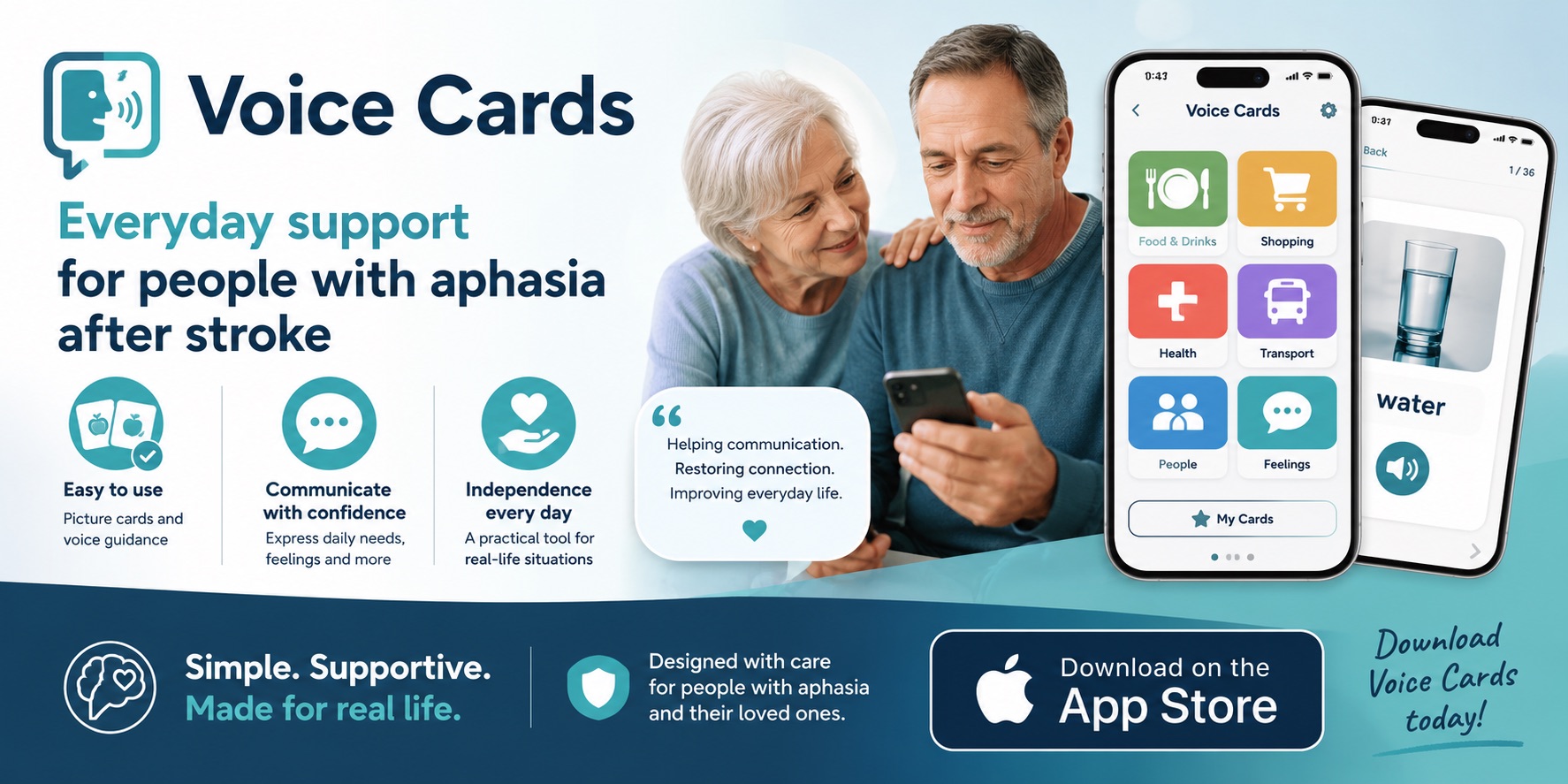
Our separate guide Apps for Aphasia: Simple Communication Tools for Everyday Life explains how simple communication apps and voice cards can be used in everyday situations.
15. Use Live Speech on iPhone if typing is easier than speaking
Some iPhone users may find Live Speech useful.
Live Speech allows a person to type text and have the iPhone speak it aloud. It can be used during supported phone and FaceTime conversations as well as for in-person communication.
To explore the feature:
Settings > Accessibility > Live Speech
This can be useful for someone who can type the intended message more easily than they can say it aloud.
It will not suit everyone. If writing is also difficult, prepared phrases, pictures, gestures or another communication method may be more practical.
16. Voice control is helpful only if speaking commands is comfortable
Android includes Voice Access, and smartphones generally provide several ways to perform tasks with spoken commands.
Voice control can help someone who can comfortably produce the required commands but has difficulty navigating small buttons or complicated menus.
For example, voice features may help with:
- opening an app;
- calling a contact;
- navigating screens;
- dictating a short message.
But voice control is not automatically a good aphasia solution.
If producing the exact spoken command is the difficult part, requiring voice commands can add frustration instead of removing it.
Choose technology around the person’s strengths rather than around the feature list printed on the phone.
17. Text-to-speech can help with reading
Some phones can read selected text or screen content aloud.
This can be useful when a written message is easier to understand when it is also heard.
Possible uses include:
- reading a text message aloud;
- listening to an email;
- hearing a webpage;
- checking the wording of a written message.
On iPhone, relevant options are available under accessibility settings for spoken or read-aloud content. Android also provides accessibility tools that can read selected screen content.
Again, this is optional. Some people understand written information better than spoken information, so adding speech would not necessarily help them.
18. Remove unnecessary notifications
A phone that constantly displays:
- news alerts;
- shopping promotions;
- game notifications;
- social media alerts;
- software messages;
- marketing emails
can become much harder to use.
Turn off notifications that do not serve a useful everyday purpose.
Keep important notifications such as messages and calls from family if the person wants them.
A quieter phone is easier to understand because every alert has more meaning.
19. Remove duplicate and unnecessary apps
A smartphone may contain multiple apps that perform essentially the same task:
- three browsers;
- several messaging apps;
- multiple photo apps;
- several weather apps;
- unused shopping apps.
Where possible, choose one familiar tool for each everyday job.
For example:
Messages = family texting
FaceTime = video calls
Photos = family pictures
Predictability reduces the number of decisions required before the actual task begins.
20. Avoid folders with vague names
Folders can reduce clutter, but they can also hide apps.
A folder called:
Utilities
may be less useful than leaving the two important apps visible.
If folders are needed, use clear categories and keep them small.
Do not create a folder containing 25 miscellaneous icons and expect it to simplify the phone.
21. Keep the same apps in the same place
Once a useful arrangement has been created, avoid unnecessary redesigns.
Family members sometimes reorganize a phone because a new layout appears cleaner to them.
But the person using the phone may remember:
“I tap the green button at the bottom.”
That spatial routine can be valuable even when remembering the written app name is difficult.
22. Create a simple printed smartphone guide
A short printed guide can help with one or two important tasks.
For example:
CALL ANNA
- Tap the green Phone button.
- Tap Anna’s photo.
- Tap Call.
The guide can include screenshots or photographs of the actual phone.
Avoid creating a 20-page smartphone manual. If the person only wants help making calls, create a one-page calling guide.
23. Use screenshots instead of long instructions
A picture of the real screen can sometimes be much easier to follow than written instructions.
Instead of:
“Open the messaging application, find the conversation list and select your daughter’s conversation.”
show:
1. Picture of Messages icon
2. Picture of daughter’s contact photo
3. Picture of the text box
This is particularly useful when another family member is helping from a distance.
24. Keep an aphasia ID card on the smartphone
A phone can also carry a short message explaining that communication may take longer.
For example:
I have aphasia.
Please give me time to communicate.
Please speak directly to me.
Please use short sentences.
The message can be saved as:
- a picture;
- a note;
- a communication card;
- a prepared phrase inside a communication app.
Our guide What Is an Aphasia ID Card? explains how to create a short, respectful card for everyday situations.
25. Make the aphasia card easy to find
A card is not very helpful if it takes five minutes to locate.
Keep it somewhere predictable.
Depending on the person’s preferences, that could mean:
- a favorite photo;
- a dedicated album;
- a communication app;
- a note pinned near the top;
- a printed card inside the phone case.
Choose the method the person can reach reliably.
26. Set up emergency contacts without turning the phone into a surveillance device
It can be useful to make trusted contacts easy to reach during an unexpected situation.
Keep emergency contact information current and remove obsolete phone numbers.
However, convenience should not become an excuse to take unnecessary control of the person’s privacy.
A smartphone may contain:
- private conversations;
- photographs;
- financial information;
- personal accounts;
- location information.
Support should be proportionate to what the person actually needs.
27. Be careful with passwords and banking information
Do not solve password difficulties by creating an unprotected note containing:
- bank passwords;
- card PINs;
- email passwords;
- Apple Account or Google Account passwords;
- full identity information.
If password management is becoming difficult, use appropriate secure password-management features and involve a trusted person only to the extent the smartphone owner wants and needs.
Making a phone easier to use should not make it easier for a stranger to access sensitive accounts.
28. Reduce authentication complexity where it can be done safely
Repeatedly entering long passwords can make ordinary phone use unnecessarily difficult.
Where appropriate, use secure convenience features already available on the phone, such as:
- Face ID;
- Touch ID;
- fingerprint unlocking;
- password autofill;
- saved trusted logins.
Do not remove the device passcode entirely simply to make access easier.
29. Make family communication predictable
If relatives live far away, establish a simple routine.
For example:
- daughter sends a message every morning;
- the person answers 👍 when everything is fine;
- video call every Sunday at 6 PM;
- family sends photographs instead of long text updates;
- one relative is the first person to call when phone help is needed.
A predictable system can reduce the need to initiate complicated digital conversations from scratch.
30. Do not expect every message to receive a written reply
If writing is difficult, accepting other responses can make communication much more comfortable.
A reply might be:
- 👍;
- ❤️;
- a photo;
- a short voice message;
- a video call;
- a prepared phrase;
- no reply until later.
The objective is successful contact, not perfect texting.
31. Avoid correcting spelling unless it matters
If a message clearly communicates:
“coffe 3?”
the important information may already be there.
Turning every family text into a spelling exercise can make the phone feel like work rather than a way to stay connected.
Correct only when clarification is genuinely necessary.
32. Do not finish every message for the person
Predictive help can be useful, but constantly taking the phone and typing on someone’s behalf can gradually remove independence.
Before stepping in, give the person time.
If help is needed, try smaller support first:
- show the correct app;
- point to the contact;
- offer two possible words;
- find the prepared message list;
- wait.
Take over only when the person wants you to.
33. Do not speak to the caregiver instead of the person
A smartphone can support direct communication, but only if other people allow it to.
If someone needs time to type a message, wait for that message.
If they show a communication card, read it and respond to them.
If a family member is standing nearby, do not automatically turn to the family member for the answer.
The communication method may be different, but the conversation still belongs to the person participating in it.
34. Keep smartphone practice connected to real life
If someone wants to learn to call their daughter, practice calling their daughter.
If they want to send photographs, practice sending a real photograph.
If they want to check tomorrow’s weather, practice doing exactly that.
Real tasks have an obvious purpose and are easier to remember than abstract exercises involving features the person never intends to use.
35. Practice one task at a time
Avoid lessons such as:
“Today we are going to learn how to use your smartphone.”
That is far too broad.
Choose one practical objective:
Today: call Peter.
Another day:
Today: open a message from Peter.
Another day:
Today: send Peter a photo.
Small, repeatable tasks are easier to make part of ordinary life.
36. Watch for problems caused by software updates
Phone updates can sometimes move buttons, introduce new screens or change the appearance of familiar apps.
A change that seems minor to another family member can disrupt a familiar routine.
After a major phone update:
- check the Home Screen;
- check Phone;
- check Messages;
- check favorite contacts;
- check accessibility settings;
- check the communication app;
- check whether important shortcuts still work.
If something changed, explain and practice only the affected task rather than teaching the entire phone again.
37. Keep remote family support simple
Helping someone with a phone from another city can be difficult.
Instead of saying:
“Go into Settings, scroll down, select Apps, find the permissions section and then…”
use simple directions.
For example:
“Look for the gray Settings picture.”
Pause.
“Tell me when it is open.”
Then give the next instruction.
One step at a time is usually easier than reading an entire procedure over the phone.
38. Create a family phone-support sheet
If several relatives help with the smartphone, keep a short private record of its setup.
For example:
- phone model;
- important apps;
- where important contacts are stored;
- which accessibility features are enabled;
- which communication method works best;
- who normally helps with technical problems.
Do not include sensitive passwords in an ordinary shared document.
The purpose is to prevent one family member from changing a carefully organized setup without realizing why it was configured that way.
39. Smartphone independence does not mean doing everything alone
Independence can mean different things.
For one person it may mean being able to make every call without assistance.
For another it may mean:
- choosing who they want to call;
- selecting a prepared message themselves;
- showing a communication card;
- asking a family member to help with one technical step;
- deciding when they want assistance.
The important distinction is between support and taking control.
40. A practical smartphone setup for someone with aphasia
A simple phone might be organized like this:
Home Screen
- Phone
- Messages
- Photos
- Camera
- Video calls
- Communication app
- Weather
- Maps
Favorite contacts
- Partner
- Daughter
- Son
- Close friend
- Trusted neighbor
Prepared messages
- I am OK.
- Please call me.
- Please wait.
- I don’t understand.
- Yes.
- No.
- I need help.
Useful visual content
- family photo album;
- important places;
- aphasia ID card;
- simple screenshot instructions.
This is only an example. The best smartphone setup is the one designed around the individual user’s life.
Smartphone setup checklist for family and caregivers
- Ask what the person wants to do with the phone.
- Keep familiar features in familiar locations.
- Remove unnecessary Home Screen clutter.
- Make important icons easy to see.
- Add clear photographs to important contacts.
- Create a short favorites list.
- Test making one familiar phone call.
- Test receiving a call.
- Test opening a text message.
- Create several reusable short messages.
- Decide whether emoji are useful.
- Create a small album of useful photographs.
- Increase text or display size if needed.
- Reduce unnecessary notifications.
- Consider Assistive Access on iPhone only if the simpler interface is genuinely helpful.
- Consider Live Speech if typing is easier than speaking.
- Consider communication apps when prepared messages are useful.
- Save an aphasia ID card somewhere easy to reach.
- Check emergency contacts.
- Keep passwords and financial information secure.
- Create a short screenshot-based guide for difficult tasks.
- Practice one real task at a time.
- Do not change the layout unnecessarily once it works.
- Review the setup after major software updates.
- Ask regularly whether the person still likes the arrangement.
Common mistakes to avoid
- Making every decision for the person. The phone should reflect their preferences.
- Changing everything in one afternoon. Familiar routines can be valuable.
- Installing too many “helpful” apps. More apps can create more confusion.
- Expecting voice control to work for everyone. Speaking commands may itself be difficult.
- Expecting typing to work for everyone. Writing may also be difficult.
- Using childish icons or language. Simplified does not need to mean childish.
- Correcting every text message. Successful communication matters more than perfect spelling.
- Taking the phone away and completing every task. Help only as much as needed.
- Storing passwords in an unsecured note. Accessibility should not reduce security.
- Assuming one setup fits every person with aphasia. Individual preferences and communication patterns differ.
Frequently asked questions
Can someone with aphasia use a smartphone?
Yes. Many people with aphasia use smartphones for calls, messages, photographs, communication tools and ordinary everyday activities. The useful setup depends on the individual. Simplifying the interface, using familiar contacts and reducing the number of steps can make common tasks easier.
How can I make an iPhone easier for someone with aphasia?
Start by simplifying the Home Screen, adding photographs to important contacts, increasing text size if useful, reducing unnecessary notifications and preparing short reusable messages. If the standard interface remains overwhelming, iPhone’s Assistive Access can provide a more simplified layout.
What is Assistive Access on iPhone?
Assistive Access is an iPhone accessibility mode that can provide a simplified interface with larger visual elements and selected apps. Calls and Messages can be organized around familiar contacts. It is optional and should be used only when the person prefers the simplified experience.
How can I make phone calls easier for someone with aphasia?
Put important contacts first, add recognizable photographs, keep the Phone app easy to reach and reduce the number of steps required to start a call. Family members can also make conversations easier by speaking about one topic at a time and allowing time for responses.
Are video calls better than normal phone calls for aphasia?
They can be. Video allows facial expressions, gestures, pointing and visual objects to become part of the conversation. Some people find this helpful, while others prefer the simplicity of voice-only calls.
How can someone with aphasia send text messages?
Messages can be kept short and may use prepared phrases, emoji, photographs or other communication methods. A complete grammatically perfect sentence is not required for successful texting.
What messages should I prepare on the phone?
Useful examples include “I am OK,” “Please call me,” “Please wait,” “I don’t understand,” “Yes,” “No,” and “I need help.” The best messages are personal and based on situations the person encounters regularly.
Can an iPhone speak typed text during a phone call?
Yes. Apple’s Live Speech accessibility feature can speak typed text during supported phone and FaceTime conversations and can also speak through the device for in-person communication.
Can Android phones be controlled by voice?
Android provides Voice Access, which can be used to navigate the phone and perform tasks using spoken commands. It can be useful when spoken commands are comfortable for the individual, but it will not be suitable for everyone with aphasia.
Can a smartphone read messages aloud?
Smartphones provide accessibility features that can read selected text or screen content aloud. This can be useful for someone who benefits from hearing written information as well as seeing it.
What if the person cannot type easily?
Try prepared messages, photographs, emoji, communication cards, large buttons or a communication app. Typing should not be treated as the only alternative to speech.
What if the person cannot speak clearly enough to use voice commands?
Do not make voice control part of the setup. Use touch, visual contacts, prepared phrases, pictures or another method that is more comfortable. Accessibility should be based on the person’s strengths.
Should I delete most apps from the phone?
Not automatically. Remove or move only unnecessary clutter and preserve familiar apps and routines. Making many changes at once can make the phone harder rather than easier to use.
Should I set up the smartphone for the person?
Help with technical setup where needed, but involve the person in decisions about contacts, apps, layout and communication methods. The objective is to increase access and independence rather than take control of the device.
Can I keep an aphasia ID card on the phone?
Yes. A short aphasia communication card can be stored as an image, note or communication-app message. Keep it in a location the person can reach easily when they need to explain that communication takes more time.
Can photos help someone with aphasia communicate?
Yes. Photos can establish a topic without requiring the person to find or type a specific word. A small album containing familiar people, places and everyday objects can also provide useful visual support during conversations.
How should family members text someone with aphasia?
Use short messages, one main idea at a time and clear choices when appropriate. Give the person time to respond and accept replies through emoji, photographs or short phrases instead of expecting a long written answer.
Should I correct spelling mistakes in text messages?
Usually not when the intended meaning is clear. Family texting should remain communication rather than becoming a constant language test. Ask for clarification only when the message cannot be understood.
How can distant family members help with smartphone problems?
Give one instruction at a time, refer to recognizable icons and use screenshots when possible. A short shared record of the person’s phone setup can also help relatives avoid making conflicting changes.
What is the best smartphone for someone with aphasia?
There is no single best model for everyone. Familiarity is often more valuable than changing platforms. A phone the person already knows may be easier to adapt than a completely new device with a different interface.
Should I buy a new phone because the current smartphone is difficult to use?
Try simplifying the existing phone first. A new device can introduce a new layout, new buttons and unfamiliar behavior. Replace the phone when there is a practical reason to do so, not simply because the current setup needs reorganizing.
What is the most important smartphone change to make?
Reduce the distance between the person and the tasks that matter most. If calling family is the priority, make family contacts easy to recognize and reach. If texting is important, prepare simple messages. If communication outside the home is difficult, keep a communication card or app easy to open.
Final thoughts
A smartphone can support independence, family contact and everyday communication when it is organized around the person rather than around every feature the device offers.
Start small. Identify the two or three things the person most wants to do. Make those tasks easy to find, easy to recognize and as predictable as possible.
For one person, that may mean a normal iPhone with four favorite contacts and larger text. For another, it may mean Assistive Access. Someone else may prefer photographs, prepared messages or a communication app. Another person may need very little adaptation at all.
The best setup is not the most technologically advanced one. It is the setup that lets the person use the phone for real life with less frustration and as much control as possible.
This article is intended for general everyday communication and accessibility information. It is not medical advice and does not replace individual professional support where that is needed.